
TL;DR: A canonical tag is a small piece of code that tells Google “this is the original, preferred version of this page.” It matters because most websites unintentionally create multiple URLs that show the same or very similar content, and search engines need to know which one to rank. Get canonical tags wrong, and your traffic can split across duplicate pages instead of consolidating on one strong page. The good news: on WordPress, you almost never need to write this code yourself — your SEO plugin handles it automatically once configured correctly.
If you have ever opened your SEO plugin and seen a setting labeled “canonical URL” and quietly closed the tab, you are not alone. Canonical tags sound like something only a developer should touch, but understanding them is one of the fastest ways for a non-technical website owner to fix duplicate content issues, protect rankings, and stop pages from competing with each other in search results.
This guide breaks down canonical tags SEO in plain English, with zero code-speak, so you can understand what they do, why they matter, and how to manage them even if you have never opened a line of HTML in your life.

What Is a Canonical Tag, in Plain English
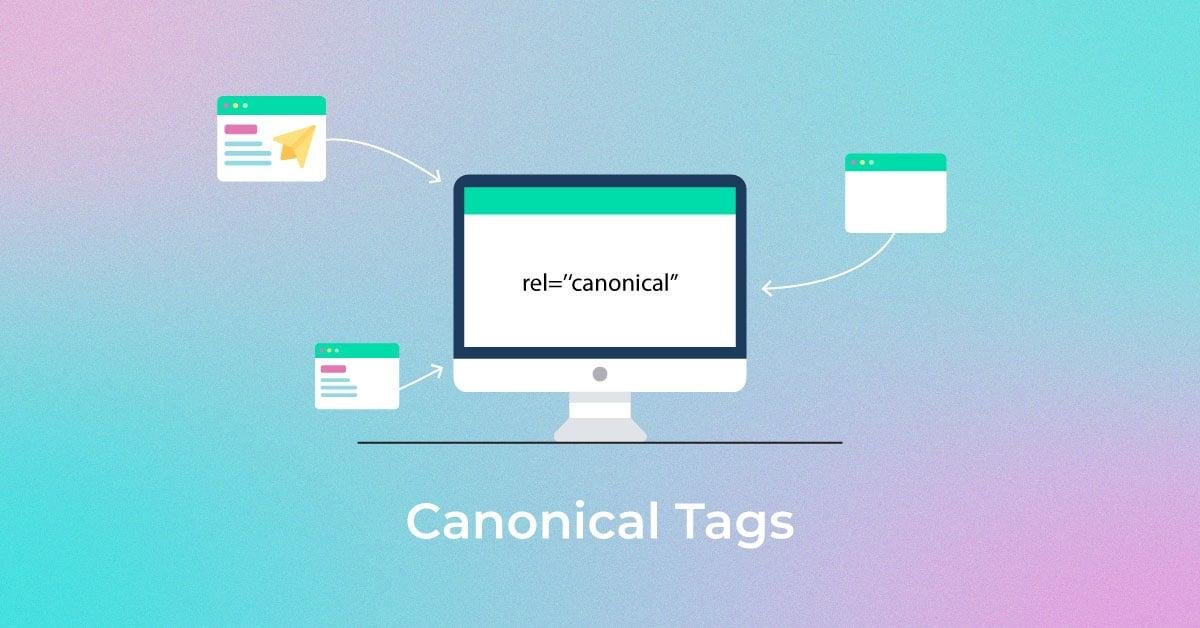
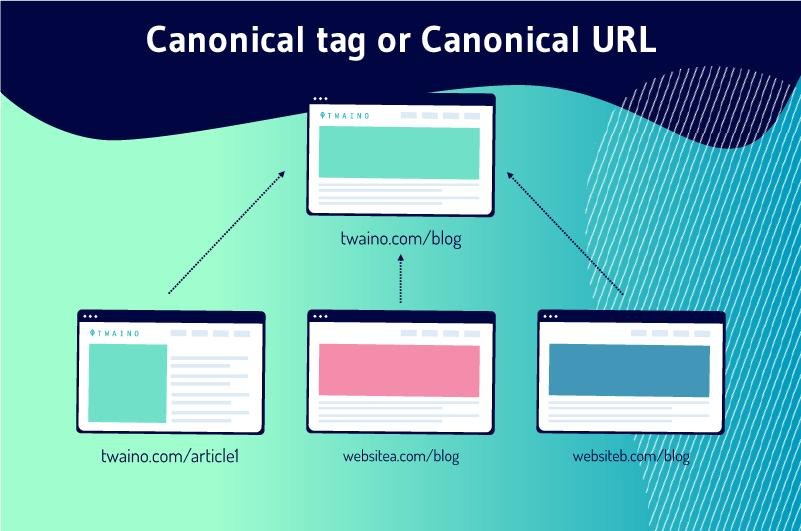
Think of canonical tags the way you would think of a “preferred name” badge at a conference. Imagine three different name tags exist for the same person — “Rob,” “Robert,” and “Bob” — but everyone needs to know that “Robert” is the official name to use on the attendance sheet. A canonical tag does exactly that for a webpage. It tells search engines, “Out of all the URL variations that lead to this content, this one is the official version. Count the rankings, links, and authority toward this URL specifically.”
Technically, it lives inside the invisible “head” section of a webpage’s code and looks something like this:
<link rel="canonical" href="https://example.com/preferred-page-url/" />You will likely never need to type this yourself. Every modern WordPress SEO plugin generates it for you. What matters is understanding what it does so you can check whether it is pointing to the right page. If you want the technical definition straight from the source, Google’s own documentation on URL canonicalization explains how it selects a representative URL from a set of duplicate pages.

Why Canonical Tags Matter for SEO
Search engines like Google try to show users the single best result for a search query, not five near-identical pages from the same website. When Google finds multiple URLs with very similar content, it has to make a judgment call about which one to show, and it splits any ranking signals (like backlinks and engagement data) across all the duplicate versions instead of consolidating them into one strong page.
This is called duplicate content, and it is far more common than most site owners realize. It is rarely intentional — it usually happens because of how websites are technically structured. A properly implemented canonical tag solves this by consolidating all of that scattered ranking power into a single, designated URL, which gives that page a much stronger chance of ranking well.

Real-World Examples of When You Need Canonical Tags
Most non-developers are surprised to learn how easily duplicate URLs get created. Here are the most common situations:
Same product, multiple URLs. An online store might let the same product be reached through /shop/sneakers/, /category/footwear/sneakers/, and /sneakers?color=red. To a person, that is one product. To a search engine, those can look like three separate pages.
HTTP vs. HTTPS or www vs. non-www. If http://yoursite.com and https://www.yoursite.com both load successfully, search engines may treat them as duplicate sites unless a canonical tag (or redirect) clarifies which one is correct.
Printer-friendly or AMP pages. A “print version” of a blog post or an AMP version for mobile often contains the same content as the original article, just formatted differently.
URL parameters from tracking or filters. Marketing campaign links often add tracking parameters like ?utm_source=newsletter, and filtered product listings add parameters like ?sort=price. These create technically unique URLs with the same core content.
Syndicated or republished content. If your content is republished on a partner site, a canonical tag on the partner’s version pointing back to your original tells search engines your page is the source.

Self-Referencing Canonical Tags
Here is something that surprises a lot of beginners: even pages that have no duplicate version should still have a canonical tag, and it should simply point to themselves. This is called a self-referencing canonical tag, and it is considered a best practice rather than an edge case. It acts as a safety net — if your page ever gets duplicated by parameters, scrapers, or staging environments down the line, the self-referencing tag has already told search engines which version is the real one.
Most SEO plugins add self-referencing canonical tags automatically by default, which is one of the reasons a properly configured plugin matters so much.

Common Canonical Tag Mistakes Beginners Make
Canonical tags are simple in concept but easy to get wrong in practice. A few mistakes show up again and again on small business and blog websites:
Pointing the canonical tag to the wrong page entirely, often because a page was duplicated from a template and the canonical setting was never updated.
Setting a canonical tag on a page that should actually be removed from search results altogether, when a noindex tag would have been the correct tool instead.
Using canonical tags across genuinely different pages that only share a similar topic, which can cause search engines to ignore the canonical entirely since the content does not actually match.
Forgetting to update canonical tags after a site migration, redesign, or URL structure change, leaving old tags pointing to pages that no longer exist.
Letting plugin conflicts overwrite canonical settings, which tends to happen when more than one SEO plugin is active at the same time.
How to Add Canonical Tags Without Touching Code
If your site runs on WordPress, you do not need a developer for this. A properly configured SEO plugin will read your site structure, generate canonical tags automatically for every page and post, and let you manually override them on a page-by-page basis when needed — usually through a simple text field in the page editor labeled “canonical URL.” Google’s guide on how to specify a canonical URL ranks rel=”canonical” tags as one of the strongest signals available, just below redirects, which is useful context if you are ever deciding between fixing duplicates with a canonical tag or a redirect instead.
Plugins like Yoast SEO, Rank Math, and All in One SEO all handle this natively, along with related technical tasks like XML sitemaps, meta descriptions, and structured data. If you are still deciding which one fits your site, our breakdown of the best WordPress SEO plugin options for 2026 compares features, pricing, and installation steps so you can pick the right tool without trial and error. The guide also explains why running two full SEO plugins at once is one of the fastest ways to accidentally create duplicate or conflicting canonical tags, so it is worth a read before you install anything new.
For most beginners, the safest workflow looks like this: install one of the best SEO plugins for WordPress 2026, let it auto-generate self-referencing canonical tags across the site, and only manually adjust the canonical field on pages you know have duplicate versions, such as filtered product listings or syndicated articles.

Canonical Tags vs. Redirects vs. Noindex
These three tools get confused constantly because they all deal with “extra” pages, but they solve different problems.
| Tool | What it does | When to use it |
|---|---|---|
| Canonical tag | Tells search engines which URL to credit, while keeping both URLs accessible to visitors | Multiple URLs show the same content and both need to stay live (e.g., filtered listings) |
| 301 redirect | Permanently sends visitors and search engines from one URL to another | A page has moved permanently and the old URL should no longer exist |
| Noindex tag | Tells search engines not to show the page in search results at all | A page should exist for users (like a thank-you page) but never rank |
A simple way to remember it: redirects move the destination, noindex hides the page, and canonical tags just clarify ownership while leaving everything else untouched. Google’s documentation on blocking search indexing with noindex is worth bookmarking if you are unsure whether a page should be hidden from search entirely rather than just consolidated with a canonical tag.
Canonical Tags and Duplicate or Multilingual Content
Duplicate content is not always accidental URL clutter — sometimes it is structural, like running similar content across multiple language versions of a site or repeating similar information across location or service pages. If you are dealing with that kind of large-scale repetition, it is worth reading our guide on whether repeat info on a website is bad for SEO, which covers how search engines evaluate repeated content and what to fix beyond just canonical tags.
If your duplication is happening across language versions of the same site, canonical tags are not the right tool on their own — that is a job for hreflang tags, which work alongside canonicals to tell search engines which language version to show which audience. Our multilingual SEO guide walks through how the two work together so international pages do not cannibalize each other in search results, and Google’s own localized versions documentation covers the exact hreflang syntax and common implementation errors in more technical detail.

How to Check If Your Canonical Tags Are Set Up Correctly
You do not need technical skills to audit this yourself. Right-click any page on your site, choose “View Page Source,” and search the page (Ctrl+F or Cmd+F) for the word “canonical.” You should see one line that looks like the code example earlier in this guide, and the URL inside it should be the version of the page you actually want to rank.
If you see no canonical tag at all, your plugin may not be configured correctly. If you see a canonical tag pointing to a completely different page, something was likely set manually and should be reviewed. Google Search Console’s URL Inspection tool will also show you which URL Google has selected as canonical, which is useful when Google chooses a different URL than the one your site specifies — this can happen when Google believes your declared canonical does not match its own assessment of the page. If you run into this mismatch, Google’s guide to fixing canonicalization issues walks through the most common causes and how to resolve them.

Frequently Asked Questions
Do canonical tags guarantee Google will follow them? No. Canonical tags are a strong signal, not a directive Google is forced to obey. In most cases Google respects them, but if other signals on the page contradict the tag, Google can choose a different URL as canonical.
Can I have more than one canonical tag on a page? No, a page should only ever have one canonical tag. Multiple conflicting canonical tags, which sometimes happen when plugins or themes both try to add one, can cause search engines to ignore the canonical signal entirely.
Do canonical tags affect page speed or user experience? No, canonical tags are invisible to visitors and have no effect on how a page loads or displays. They exist purely for search engines.
Is a canonical tag the same as a redirect? No. A redirect sends both users and search engines to a different URL automatically. A canonical tag leaves the original URL fully accessible to visitors and only signals search engine preference.
Final Thoughts
Canonical tags are one of those technical SEO basics that sound intimidating but are genuinely manageable once you understand the logic behind them: pick one preferred URL per piece of content, and make sure search engines know which one it is. For most WordPress sites, getting this right is mostly a matter of choosing a reliable plugin and letting it do the heavy lifting, then spot-checking pages that are prone to duplication, like product filters or syndicated articles.
If you are setting up your site’s technical SEO foundation from scratch, start by reviewing the best SEO plugins for WordPress 2026 so canonical tags, sitemaps, and meta data are all handled correctly from day one.