WhatsApp Now
 +(91) 8700778618

Have you ever clicked on a link or tried to access a webpage, only to be met with a stark message that says “403 Forbidden”? If so, you’re not alone. The 403 forbidden error is one of the most common HTTP status codes that internet users encounter, and it can be incredibly frustrating when you’re trying to access important information or complete a task online.
Understanding what this error means and how to resolve it quickly is essential for anyone who regularly uses the internet, whether you’re a casual browser, a website owner, or a digital marketing professional.
In this comprehensive guide, we’ll dive deep into everything you need to know about the 403 forbidden error, from its technical meaning to practical solutions that can help you get back online in no time. If you’re experiencing persistent website issues or need professional guidance on optimizing your site’s performance and accessibility, consider taking advantage of our free seo consultation to ensure your website is running smoothly and efficiently.
What Is 403 Forbidden Error?
The 403 forbidden error is an HTTP status code that indicates a client (your web browser) has successfully communicated with the server hosting a website, but the server is refusing to fulfill the request. Unlike a 404 error, which means the page doesn’t exist, a 403 error means the page exists, but you don’t have permission to view it.
Think of it this way: imagine you’re trying to enter a building. A 404 error would be like arriving at an address where no building exists. A 403 forbidden error, on the other hand, is like finding the building but being stopped at the door because you don’t have the right credentials or authorization to enter.
Technical Definition of 403 Forbidden
From a technical standpoint, what is 403 forbidden? The 403 forbidden error meaning is defined in the HTTP/1.1 standard (RFC 7231) as a status code that indicates the server understood the request but refuses to authorize it. The server can make the existence of a resource known to a user without granting access to it.
The key distinction here is that authentication would not help in this situation. Even if you provide credentials or log in, you still won’t be granted access because the restriction is typically based on other factors such as IP address, file permissions, or server configuration settings.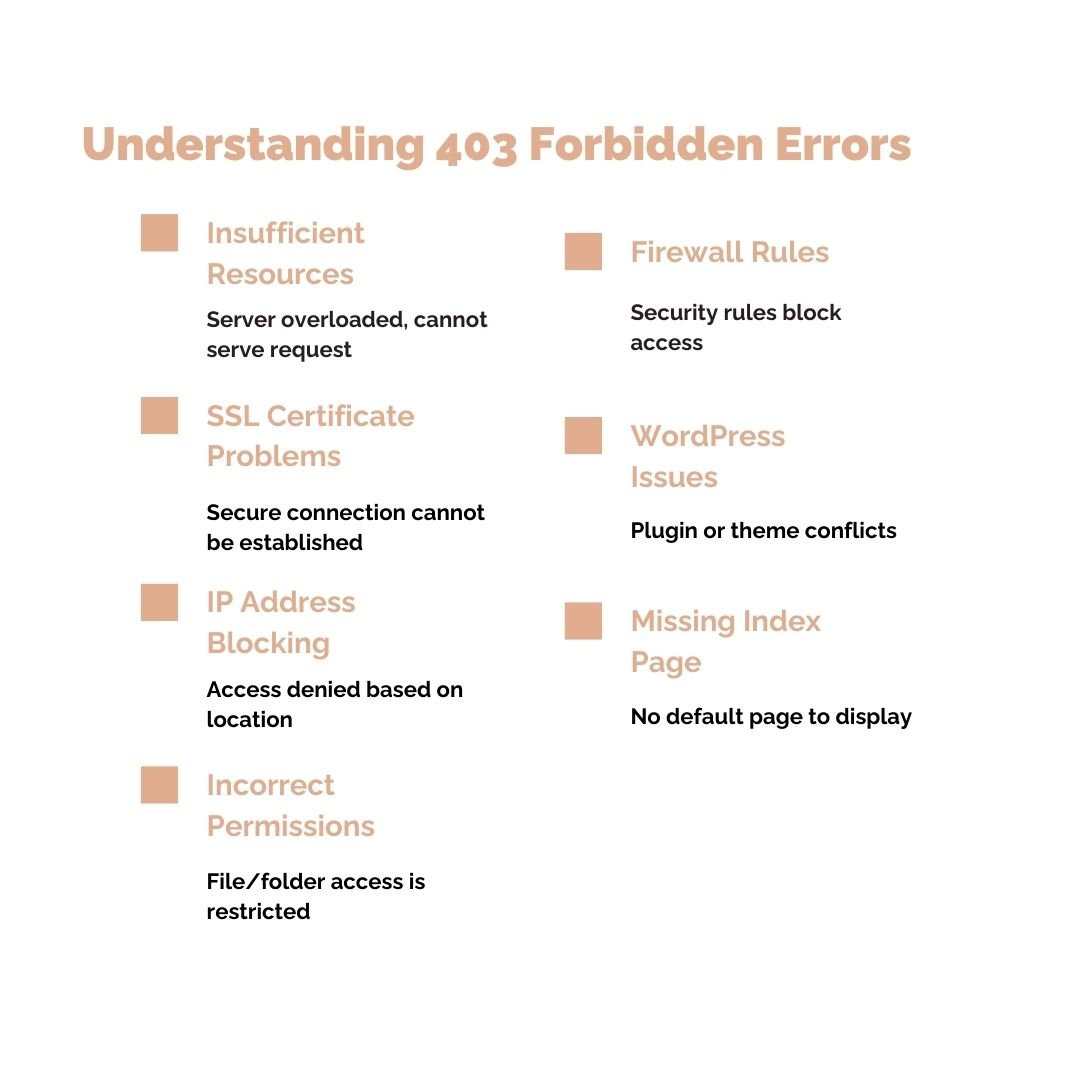
Understanding the 403 Forbidden Meaning
When you encounter an error 403 forbidden, it’s important to understand what does 403 forbidden mean in practical terms. This error can manifest in several ways across different browsers and servers:
- “403 Forbidden”
- “HTTP Error 403 – Forbidden”
- “Access Denied”
- “Forbidden: You don’t have permission to access [directory] on this server”
- “Error 403”
- “Forbidden – You don’t have permission to access this resource”
The meaning of 403 forbidden essentially boils down to one thing: you’re not allowed to see this content. But the reasons why you’re being blocked can vary significantly, which we’ll explore in detail throughout this guide.
How 403 Errors Differ from Other HTTP Errors
To fully grasp what is 403 forbidden error, it helps to understand how it differs from other common HTTP errors:
- 401 Unauthorized: This error means authentication is required and has failed or hasn’t been provided yet. Unlike a 403, a 401 error suggests that providing the correct credentials might grant access.
- 404 Not Found: This indicates the requested resource doesn’t exist on the server. The server can’t find what you’re looking for.
- 403 Forbidden: The resource exists, the server understands your request, but you’re not permitted to access it regardless of authentication.
- 500 Internal Server Error: This is a server-side error indicating something went wrong on the server, but the server can’t be more specific about the exact problem.
Understanding these distinctions is crucial when troubleshooting because the 403 forbidden problem requires different solutions than other HTTP errors.
Common Causes of 403 Forbidden Error
Now that we understand what does 403 forbidden mean, let’s explore the most common reasons why this error occurs. Identifying the root cause is the first step toward implementing an effective solution.
1. Incorrect File or Folder Permissions
One of the most frequent causes of the 403 forbidden error is incorrect file or folder permissions on the server. Every file and directory on a web server has specific permissions that determine who can read, write, or execute them.
In Unix-based systems (which most web servers use), permissions are typically represented by three-digit numbers:
- The first digit represents the owner’s permissions
- The second digit represents the group’s permissions
- The third digit represents everyone else’s permissions
For example, a permission setting of 644 for a file means:
- Owner can read and write (6)
- Group can only read (4)
- Others can only read (4)
If permissions are set too restrictively (such as 600 or 400), the web server won’t be able to read and serve the files to visitors, resulting in a 403 error.
2. Missing or Misconfigured Index Page
Web servers are configured to look for specific default files when someone accesses a directory without specifying a filename. These are typically called “index files” and commonly include:
- index.html
- index.htm
- index.php
- default.html
- default.htm
If you try to access a directory that doesn’t contain any of these default files, and the server is configured not to display directory listings, you’ll encounter a 403 forbidden error. This is actually a security feature designed to prevent users from browsing the contents of directories on your server.
3. IP Address or Country Blocking
Website owners and server administrators often implement security measures that block access from specific IP addresses or geographic locations. This might be done to:
- Prevent spam or malicious attacks from known bad actors
- Comply with legal restrictions (such as GDPR or content licensing agreements)
- Reduce server load from certain regions
- Block competitors or scrapers
If your IP address or location has been blocked, either intentionally or accidentally, you’ll see the 403 forbidden error when trying to access the site.
4. WordPress-Specific Issues
For WordPress websites, there are several unique causes of the 403 forbidden error meaning trouble:
Corrupted .htaccess File: WordPress uses a .htaccess file to manage permalinks and other server-level configurations. If this file becomes corrupted, it can cause 403 errors across your entire site or specific pages.
Plugin Conflicts: Security plugins designed to protect WordPress sites can sometimes be overzealous and block legitimate users, resulting in 403 errors.
Theme Issues: Poorly coded themes or themes that haven’t been updated can sometimes cause permission conflicts.
File Ownership Problems: If WordPress files are owned by the wrong user account on the server, the web server process won’t be able to access them properly.
5. SSL Certificate Problems
While less common, issues with SSL certificates can sometimes manifest as 403 forbidden errors, particularly when:
- The certificate has expired
- The certificate doesn’t match the domain name
- There are mixed content issues (HTTP content on HTTPS pages)
- The server configuration is blocking access due to SSL/TLS requirements
6. ModSecurity or Firewall Rules
Many web hosting providers implement ModSecurity, a web application firewall that protects against various attacks. Sometimes, these security rules can be triggered by legitimate requests that look suspicious, causing false positive 403 forbidden errors.
Common triggers include:
- Certain keywords in URLs or form submissions
- File uploads
- Specific user agents or referrers
- Rapid requests that appear to be automated
7. Insufficient Server Resources
In rare cases, when a server is experiencing extremely high load or has exhausted available resources (CPU, memory, or database connections), it might start returning 403 errors as a protective measure rather than crashing completely.
How the 403 Forbidden Error Affects Your Website
Before we dive into solutions, it’s important to understand the impact that persistent 403 forbidden problems can have on your website and business:
SEO Consequences
Search engines like Google regularly crawl websites to index their content. If Googlebot encounters 403 errors, it will:
- Stop crawling those specific pages
- Potentially remove those pages from search results over time
- May interpret persistent 403 errors as a sign of a poorly maintained website
- Could impact your overall site authority and rankings
While a few isolated 403 errors won’t necessarily tank your SEO, widespread or long-lasting issues definitely will.
User Experience Impact
From a user perspective, encountering error 403 forbidden is frustrating and confusing. It can lead to:
- Increased bounce rates as users leave your site
- Lost conversions and sales
- Damaged brand reputation
- Decreased trust in your website’s reliability
- Negative word-of-mouth or reviews
Business and Revenue Loss
For e-commerce sites, membership platforms, or any business that relies on web traffic, 403 errors can directly impact your bottom line:
- Customers can’t complete purchases
- Subscribers can’t access premium content they’ve paid for
- Lead generation forms become inaccessible
- Ad revenue drops due to reduced page views
This is why understanding how to fix 403 forbidden errors quickly is not just a technical necessity—it’s a business imperative. For website owners who want to ensure their sites are optimized for both performance and search engine visibility, exploring affordable seo packages can provide comprehensive solutions that address technical issues while improving overall site health.
How to Fix 403 Forbidden Error: User Solutions
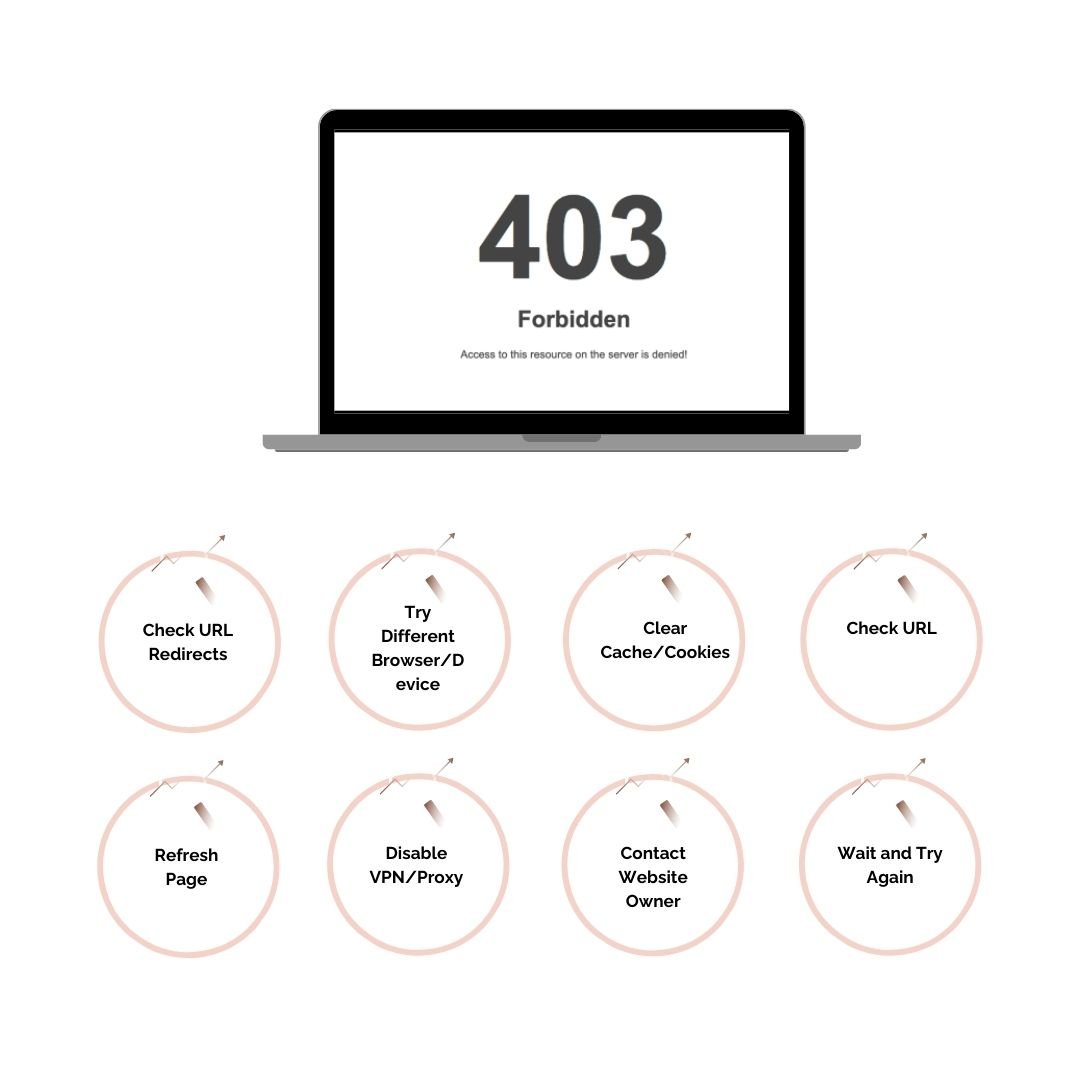
If you’re a regular user encountering a 403 forbidden error while browsing the web, here are several methods you can try to resolve the issue:
1. Refresh the Page
It might sound too simple, but sometimes a 403 forbidden error is temporary and caused by a momentary server glitch or configuration change. Try:
- Pressing F5 or clicking the refresh button
- Pressing Ctrl+F5 (Windows) or Cmd+Shift+R (Mac) to perform a hard refresh that clears cached versions
- Closing the browser tab and reopening the link
2. Check the URL
Typos in URLs are more common than you might think. Verify that:
- The URL is spelled correctly
- There are no extra spaces or characters
- The URL uses the correct protocol (http:// vs https://)
- You’re accessing the correct path or directory
Sometimes, clicking on an outdated link or manually typing a URL incorrectly can lead you to a restricted area of a website that triggers the 403 error.
3. Clear Browser Cache and Cookies
Your browser stores temporary files and cookies that can sometimes cause conflicts, leading to 403 forbidden errors. Here’s how to fix 403 forbidden error on google chrome and other browsers:
Google Chrome:
- Click the three dots menu in the top-right corner
- Select “More tools” > “Clear browsing data”
- Choose “All time” as the time range
- Check “Cookies and other site data” and “Cached images and files”
- Click “Clear data”
- Restart Chrome and try accessing the site again
Mozilla Firefox:
- Click the menu button and select “Settings”
- Select “Privacy & Security”
- Under “Cookies and Site Data,” click “Clear Data”
- Check both boxes and click “Clear”
- Restart Firefox
Safari:
- Go to Safari menu > “Preferences”
- Select “Privacy” tab
- Click “Manage Website Data”
- Click “Remove All”
- Restart Safari
Microsoft Edge:
- Click the three dots menu
- Select “Settings” > “Privacy, search, and services”
- Under “Clear browsing data,” click “Choose what to clear”
- Select “All time” and check relevant boxes
- Click “Clear now”
4. Try a Different Browser or Device
Sometimes browser-specific issues or device-specific restrictions can cause 403 errors. Try:
- Accessing the website from a different browser
- Using an incognito or private browsing window
- Trying from a different device (phone, tablet, or computer)
If the site works in another browser or device, the issue is likely with your specific setup rather than the server.
5. Check for URL Redirects
Some websites implement redirects that can occasionally malfunction and lead to 403 errors. Try:
- Accessing different pages on the same website
- Trying to access the site’s homepage directly
- Checking if you’re being redirected to a login page or different URL
6. Disable VPN or Proxy
If you’re using a VPN or proxy service, your IP address might be blocked by the website. Try:
- Disabling your VPN temporarily
- Switching to a different VPN server or location
- Turning off any proxy settings
Many websites block access from VPN servers, especially those associated with suspicious activity.
7. Contact the Website Owner
If you’ve tried all the above methods and still encounter the 403 forbidden error, the problem is likely on the server side. You should:
- Look for contact information on the website
- Report the specific page or resource that’s giving you the error
- Provide details about when the error started occurring
- Include any error codes or messages you’re seeing
8. Wait and Try Again Later
If the website is undergoing maintenance, experiencing server issues, or implementing new security measures, the 403 forbidden problem might resolve itself. Sometimes the best solution is simply to wait a few hours or a day and try again.
 How to Fix 403 Forbidden Error: Website Owner Solutions
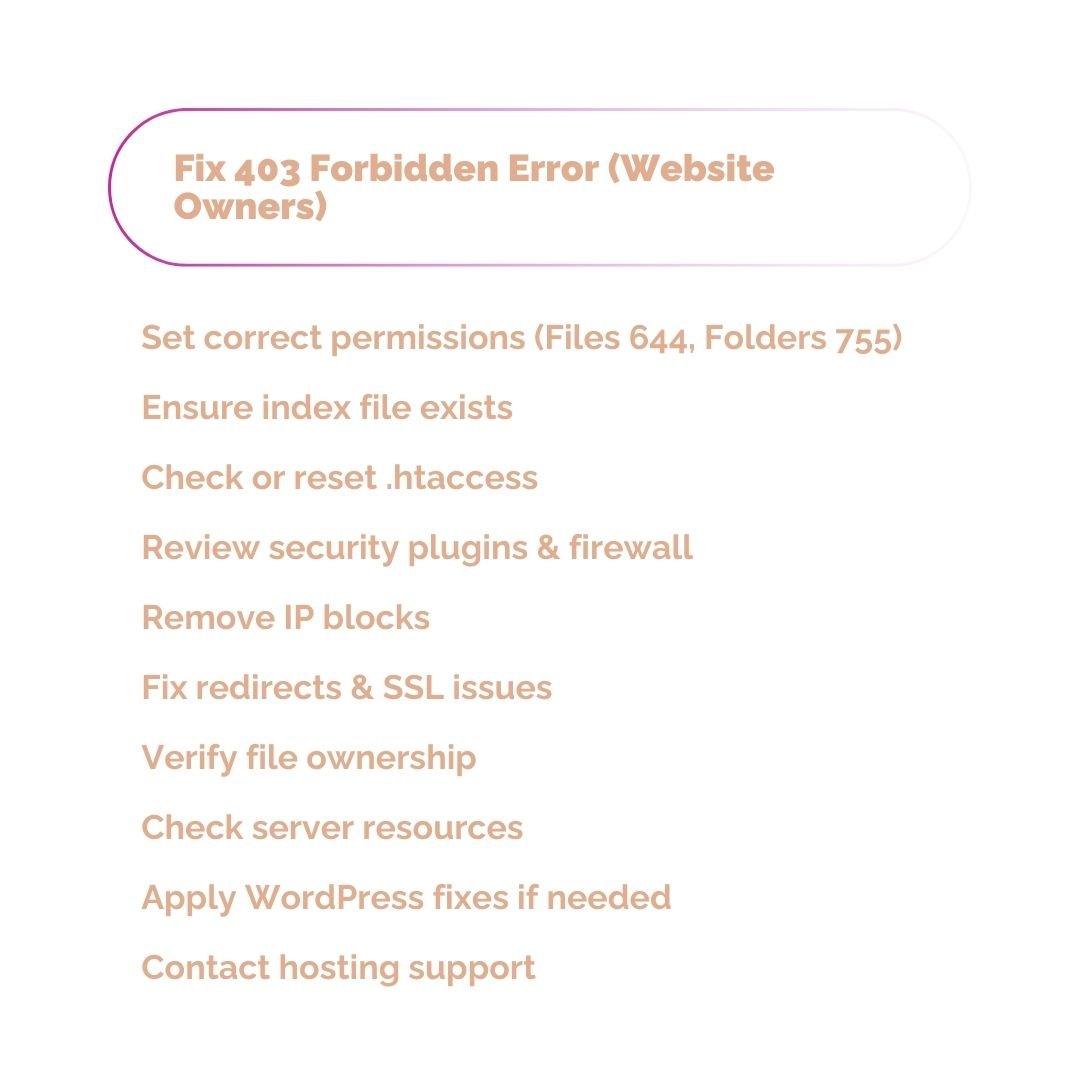
If you’re a website owner or administrator dealing with 403 forbidden errors on your site, you have more options at your disposal. Here are comprehensive solutions to resolve these issues:
1. Check and Correct File Permissions
Incorrect file permissions are one of the most common causes of what is 403 forbidden error issues for website owners.
Recommended Permissions:
- Directories: 755 (drwxr-xr-x)
- Files: 644 (-rw-r–r–)
- Executable files (like .cgi or .pl): 755
How to Change Permissions via FTP:
- Connect to your server using an FTP client like FileZilla
- Navigate to the affected directory
- Right-click on the file or folder
- Select “File permissions” or “Attributes”
- Enter the appropriate permission code (644 or 755)
- For directories, check “Recurse into subdirectories”
- Click OK to apply changes
How to Change Permissions via SSH:
# For files
chmod 644 /path/to/your/file.html

# For directories
chmod 755 /path/to/your/directory

# Recursively for all files in a directory
find /path/to/directory -type f -exec chmod 644 {} \;

# Recursively for all directories
find /path/to/directory -type d -exec chmod 755 {} \;
Important: Never set permissions to 777, as this makes files and directories writable by everyone and poses a serious security risk.
2. Verify Index File Exists
Ensure your directory contains a proper index file:
- Check that your main directory has an index.html or index.php file
- Verify the filename is spelled correctly (case-sensitive on Linux servers)
- Confirm the file is in the correct directory
- Check your server configuration for the correct index file order
Apache .htaccess Method:
DirectoryIndex index.html index.php index.htm default.html
3. Examine and Fix .htaccess File
The .htaccess file controls many server-level settings and can easily cause 403 forbidden errors if misconfigured.
Temporarily Rename .htaccess:
- Connect via FTP or cPanel File Manager
- Find the .htaccess file in your root directory
- Rename it to .htaccess.old
- Try accessing your site again
If the 403 forbidden error disappears, the problem is in your .htaccess file.
Common .htaccess Issues and Fixes:
Broken Permalinks (WordPress):
# BEGIN WordPress
<IfModule mod_rewrite.c>
RewriteEngine On
RewriteBase /
RewriteRule ^index\.php$ - [L]
RewriteCond %{REQUEST_FILENAME} !-f
RewriteCond %{REQUEST_FILENAME} !-d
RewriteRule . /index.php [L]
</IfModule>
# END WordPress
IP Blocking Directives: Check for these lines and remove if blocking your IP:
Order deny,allow
Deny from all
Allow from xxx.xxx.xxx.xxx
Hotlink Protection: Make sure hotlink protection isn’t blocking legitimate requests:
RewriteCond %{HTTP_REFERER} !^$
RewriteCond %{HTTP_REFERER} !^http(s)?://(www\.)?yourdomain.com [NC]
RewriteRule \.(jpg|jpeg|png|gif)$ - [F]
4. Review Security Plugin Settings
If you’re using WordPress or another CMS with security plugins, they might be causing false positive 403 forbidden errors.
Common Security Plugins:
- Wordfence
- Sucuri Security
- iThemes Security
- All In One WP Security & Firewall
Steps to Troubleshoot:
- Access your WordPress dashboard
- Go to the security plugin’s settings
- Check for:
- Blocked IP addresses
- Firewall rules that might be too strict
- Rate limiting settings
- Failed login attempt blocks
- Temporarily disable the plugin to test if it’s causing the issue
- If the error disappears, adjust the plugin settings rather than leaving it disabled
Whitelist Your IP Address: Most security plugins allow you to whitelist specific IP addresses. Add your own IP and any other trusted addresses to prevent accidental blocking.
5. Check Server-Side IP Blocking
Your web host might implement IP blocking at the server level.
cPanel Users:
- Log into cPanel
- Find “IP Blocker” or “IP Deny Manager”
- Review the list of blocked IPs
- Remove any that shouldn’t be blocked
For Apache servers, check:
- /etc/apache2/sites-available/ directory
- Look for “Deny from” directives
For Nginx servers, check:
- /etc/nginx/sites-available/ directory
- Look for “deny” directives
6. Disable ModSecurity Rules
ModSecurity can sometimes trigger false positives. Here’s how to identify and disable problematic rules:
Check Error Logs: Look in your server error logs (typically in /var/log/apache2/error.log or accessible through cPanel) for ModSecurity rule IDs.
Disable Specific Rules via .htaccess:
<IfModule mod_security.c>
SecRuleRemoveById 123456
</IfModule>
Replace 123456 with the actual rule ID causing issues.
Contact Your Host: If you can’t access ModSecurity settings, contact your hosting provider and provide them with:
- The specific URL causing the error
- The timestamp of when it occurred
- Any ModSecurity rule IDs from error logs
7. Verify File Ownership
On Linux servers, files need to be owned by the correct user (typically the web server user like www-data, apache, or nobody).
Check Current Ownership via SSH:
ls -la /path/to/your/website
Change Ownership:
# Change ownership to the web server user
chown -R www-data:www-data /path/to/your/website

# For cPanel/shared hosting, use your cPanel username
chown -R username:username /path/to/your/website
8. Review URL Structure and Redirects
Misconfigured redirects can cause 403 forbidden errors.
Check for Redirect Loops: Use tools like:
- Redirect Checker (redirectcheck.com)
- Screaming Frog SEO Spider
- Chrome DevTools Network tab
Common Redirect Issues:
- Redirecting to a non-existent or restricted directory
- HTTPS redirects with SSL certificate problems
- WWW to non-WWW (or vice versa) redirect issues
Fix Redirect Issues in .htaccess:
# Proper HTTPS redirect
RewriteEngine On
RewriteCond %{HTTPS} off
RewriteRule ^(.*)$ https://%{HTTP_HOST}%{REQUEST_URI} [L,R=301]

# Proper WWW redirect
RewriteEngine On
RewriteCond %{HTTP_HOST} !^www\.
RewriteRule ^(.*)$ https://www.%{HTTP_HOST}%{REQUEST_URI} [L,R=301]
9. Check SSL/TLS Configuration
SSL-related issues can sometimes manifest as 403 forbidden errors.
Verify SSL Certificate:
- Use SSL checking tools like SSL Labs (ssllabs.com/ssltest/)
- Ensure the certificate is valid and not expired
- Check that it covers all necessary domains (including www and non-www)
Fix Mixed Content Issues: Replace hard-coded HTTP URLs with HTTPS or use protocol-relative URLs:
<!-- Instead of this -->
<img src="http://yourdomain.com/image.jpg">

<!-- Use this -->
<img src="https://yourdomain.com/image.jpg">

<!-- Or this -->
<img src="//yourdomain.com/image.jpg">
10. Increase Server Resources
If your server is running low on resources, it might start returning 403 errors as a protective measure.
Check Resource Usage:
- Review your hosting control panel for CPU and memory usage
- Check database connection limits
- Monitor bandwidth usage
Solutions:
- Upgrade to a higher hosting plan
- Implement caching (WP Super Cache, W3 Total Cache for WordPress)
- Optimize your database
- Use a Content Delivery Network (CDN)
- Reduce simultaneous connections
11. Examine Server Configuration Files
Advanced users with server access should check configuration files:
Apache (httpd.conf or apache2.conf):
<Directory /path/to/website>
    Options Indexes FollowSymLinks
    AllowOverride All
    Require all granted
</Directory>
Nginx (nginx.conf or site-specific config):
location / {
    try_files $uri $uri/ /index.php?$args;
    allow all;
}
12. WordPress-Specific Fixes
Regenerate .htaccess in WordPress:
- Log into WordPress admin
- Go to Settings > Permalinks
- Simply click “Save Changes” without modifying anything
- This regenerates the .htaccess file
Reset WordPress File Permissions: Use this command via SSH (adjust path as needed):
find /path/to/wordpress/ -type d -exec chmod 755 {} \;
find /path/to/wordpress/ -type f -exec chmod 644 {} \;
Deactivate All Plugins: If you can access the admin panel:
- Go to Plugins > Installed Plugins
- Select all plugins
- Choose “Deactivate” from the bulk actions dropdown
- Check if the error persists
If you can’t access the admin panel, rename the plugins folder via FTP:
- Navigate to /wp-content/
- Rename “plugins” to “plugins.old”
- Try accessing your site again
13. Contact Your Web Host
If you’ve exhausted all options and still can’t resolve the 403 forbidden problem, your hosting provider should be your next step. They can:
- Check server-level configurations you can’t access
- Review server logs for specific error causes
- Identify if there’s a temporary server issue
- Whitelist your IP address if necessary
- Adjust ModSecurity or firewall rules
- Provide specific guidance for their hosting environment
When contacting support, provide:
- The exact URL triggering the error
- When the problem started
- What you’ve already tried
- Any error messages or codes
- Screenshots of the error
For businesses and website owners who want to prevent these technical issues from impacting their online presence, investing in fully managed seo services can ensure that your website remains accessible, optimized, and performing at its best while technical experts handle the maintenance and troubleshooting.
Advanced Troubleshooting: Developer Solutions
For developers and advanced users, here are more technical approaches to diagnosing and fixing 403 forbidden errors:
1. Analyze Server Logs
Server logs provide detailed information about what’s causing the 403 forbidden error.
Apache Access Log Location:
- /var/log/apache2/access.log
- /var/log/httpd/access_log
- Check via cPanel > Metrics > Raw Access
Apache Error Log Location:
- /var/log/apache2/error.log
- /var/log/httpd/error_log
- Check via cPanel > Metrics > Errors
What to Look For:
[client 192.168.1.1] AH01630: client denied by server configuration: /path/to/file
[client 192.168.1.1] ModSecurity: Access denied with code 403 (phase 2)
[client 192.168.1.1] Directory index forbidden by Options directive: /path/
2. Use Browser Developer Tools
Modern browsers include powerful developer tools that can help diagnose 403 forbidden errors:
Chrome DevTools:
- Press F12 to open DevTools
- Go to the Network tab
- Reload the page
- Click on the failed request (marked in red)
- Examine the Headers tab for:
- Response headers
- Request headers
- Status code details
Look for:
- Specific error messages in response headers
- Authentication headers (WWW-Authenticate)
- Custom error headers from security plugins
- Redirect chains that end in 403
3. Test with cURL
cURL is a command-line tool that allows detailed HTTP request testing:
Basic Test:
curl -I https://yourdomain.com/problematic-page
Test with Specific User Agent:
curl -I -A "Mozilla/5.0" https://yourdomain.com/problematic-page
Follow Redirects:
curl -IL https://yourdomain.com/problematic-page
Verbose Output:
curl -v https://yourdomain.com/problematic-page
This will show you the complete request and response, including any headers that might explain the 403 error.
4. Check PHP Configuration
PHP configuration issues can sometimes cause 403 forbidden errors, especially with specific scripts or file uploads.
Check php.ini Settings:
- upload_max_filesize
- post_max_size
- max_execution_time
- memory_limit
Test with phpinfo(): Create a file called info.php:
<?php
phpinfo();
?>
Upload it to your server, access it via browser, and review the configuration. Remember to delete this file after testing for security reasons.
5. Implement Proper Error Handling
Add custom error handling to provide more informative messages:
Custom 403 Page (.htaccess):
ErrorDocument 403 /custom-403.html
PHP Error Handling:
<?php
http_response_code(403);
include('custom-403-page.php');
exit();
?>
6. Audit Directory Listings Configuration
If you want to allow or prevent directory listings:
Allow Directory Listings (.htaccess):
Options +Indexes
Prevent Directory Listings (.htaccess):
Options -Indexes
Selective Index File Creation: Create an index.html file in directories where you want to control what’s displayed:
<!DOCTYPE html>
<html>
<head>
    <title>Directory Access</title>
</head>
<body>
    <h1>Nothing to see here</h1>
    <p>Please return to the <a href="/">homepage</a>.</p>
</body>
</html>
7. Implement Rate Limiting Correctly
If you’re implementing rate limiting, ensure it’s not too aggressive:
Example .htaccess Rate Limiting:
<IfModule mod_ratelimit.c>
    SetOutputFilter RATE_LIMIT
    SetEnv rate-limit 400
</IfModule>
Fail2Ban Configuration: If using Fail2Ban, adjust the threshold and ban time to avoid blocking legitimate users.
8. Review Content Security Policy (CSP)
While CSP usually causes different errors, misconfigurations can sometimes result in 403 forbidden responses:
Check CSP Headers:
Header set Content-Security-Policy "default-src 'self'; script-src 'self' 'unsafe-inline';"
Use tools like CSP Evaluator (csp-evaluator.withgoogle.com) to test your policy.
9. API and Authentication Testing
For APIs or protected areas, test authentication mechanisms:
Test with Bearer Token:
curl -H "Authorization: Bearer YOUR_TOKEN" https://yourdomain.com/api/endpoint
Test with Basic Auth:
curl -u username:password https://yourdomain.com/protected-area
Verify JWT Tokens: Ensure tokens are:
- Not expired
- Properly signed
- Include necessary claims
- Sent in the correct header format
10. Database Permission Issues
For database-driven sites, permission issues can cascade into 403 forbidden errors:
Check Database User Permissions:
SHOW GRANTS FOR 'database_user'@'localhost';
Grant Proper Permissions:
GRANT SELECT, INSERT, UPDATE, DELETE ON database_name.* TO 'database_user'@'localhost';
FLUSH PRIVILEGES;
 Preventing Future 403 Forbidden Errors
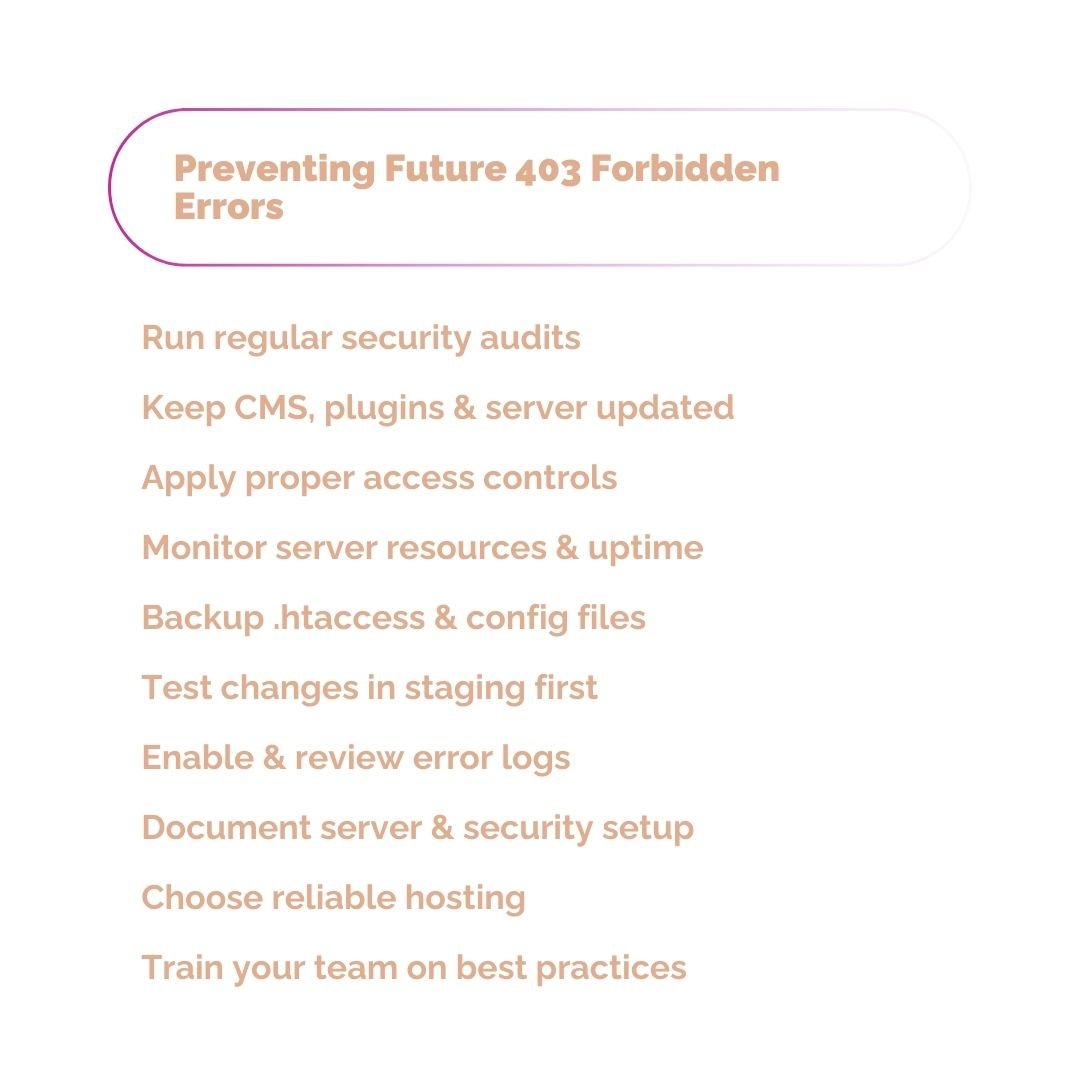
Prevention is always better than cure. Here are best practices to minimize the occurrence of 403 forbidden errors on your website:
1. Regular Security Audits
Conduct regular security audits to ensure:
- File permissions are set correctly
- No unnecessary IP blocks are in place
- Security plugins are properly configured
- Server configuration files are optimized
2. Maintain Updated Software
Keep everything up to date:
- CMS platforms (WordPress, Joomla, Drupal, etc.)
- Plugins and themes
- Server software (Apache, Nginx, PHP)
- SSL certificates
Outdated software can have misconfigurations or bugs that lead to 403 errors.
3. Implement Proper Access Controls
Design your access control strategy carefully:
- Use role-based access control (RBAC) where appropriate
- Implement proper authentication mechanisms
- Don’t block IP ranges too broadly
- Test access controls thoroughly before deploying
4. Monitor Server Resources
Proactive monitoring helps you catch issues before they cause 403 forbidden problems:
- Set up uptime monitoring (Pingdom, UptimeRobot, or similar)
- Monitor server resource usage
- Track error rates in analytics
- Set up alerts for unusual traffic patterns
5. Backup .htaccess and Configuration Files
Before making changes:
- Always backup your .htaccess file
- Keep copies of working configurations
- Document any custom rules or modifications
- Test changes in a staging environment first
6. Use a Staging Environment
Test all major changes in a staging environment:
- New plugins or themes
- Server configuration changes
- Major updates
- Security rule modifications
This allows you to catch 403 forbidden errors before they affect your live site.
7. Implement Proper Logging
Comprehensive logging helps you quickly identify and fix issues:
- Enable detailed error logging
- Regularly review logs for anomalies
- Set up log rotation to prevent disk space issues
- Use centralized logging for multiple sites
8. Document Your Setup
Maintain documentation of:
- Custom server configurations
- Security rules and their purposes
- IP whitelist/blacklist reasons
- Plugin configurations
- Any non-standard setups
This makes troubleshooting much faster when issues arise.
9. Choose Quality Hosting
Your hosting provider plays a significant role in preventing 403 forbidden errors:
- Choose reputable hosting providers
- Ensure adequate server resources
- Select hosting with good support
- Consider managed hosting for complex sites
10. Educate Your Team
If multiple people manage your website:
- Train them on proper file management
- Explain the importance of correct permissions
- Establish protocols for making changes
- Create documentation for common tasks
Testing After Fixing 403 Forbidden Errors
Once you’ve implemented fixes for your 403 forbidden error, thorough testing is essential:
1. Multi-Browser Testing
Test your fixes across multiple browsers:
- Google Chrome
- Mozilla Firefox
- Safari
- Microsoft Edge
- Mobile browsers (iOS Safari, Chrome Mobile)
2. Device Testing
Verify access from different devices:
- Desktop computers
- Laptops
- Tablets
- Smartphones
- Different operating systems
3. Location Testing
If you previously blocked certain geographic locations:
- Use VPN services to test from different countries
- Ask colleagues or friends in other locations to test
- Use online tools like BrowserStack or LambdaTest
4. User Role Testing
For membership sites or sites with different user roles:
- Test as an anonymous visitor
- Test with different user accounts (subscriber, contributor, editor, administrator)
- Verify permission levels work correctly for each role
- Ensure protected content remains protected while fixing the 403 error
5. Functionality Testing
Beyond just accessing pages, test all functionality:
- Form submissions
- File uploads
- Search functionality
- Login/logout processes
- Shopping cart and checkout (for e-commerce)
- API endpoints
- AJAX requests
6. Performance Testing
Ensure your fixes haven’t negatively impacted performance:
- Page load times
- Time to first byte (TTFB)
- Server response times
- Resource loading
- Database query performance
7. Security Verification
After fixing the 403 error, verify you haven’t compromised security:
- Run security scans
- Verify file permissions are secure (not 777)
- Test that protected areas are still protected
- Confirm security plugins are functioning
- Check that malicious requests are still blocked
 SEO Implications of 403 Forbidden Errors
Understanding how 403 errors affect your search engine optimization is crucial for maintaining your site’s visibility and rankings.
How Search Engines Interpret 403 Errors
Search engines like Google treat 403 errors differently than other HTTP status codes:
Immediate Effects:
- Google will retry accessing the URL several times
- If the 403 persists, the page will eventually be removed from search results
- PageRank and link equity are not passed to other pages (unlike 301 redirects)
- Crawl budget may be wasted on inaccessible pages
Long-term Consequences:
- Decreased organic traffic to affected pages
- Lost rankings for target keywords
- Potential impact on overall domain authority
- Reduced crawl frequency if Google encounters many 403 errors
Monitoring 403 Errors in Google Search Console
Google Search Console is your best tool for identifying 403 errors affecting your SEO:
How to Check:
- Log into Google Search Console
- Navigate to “Coverage” or “Pages” section
- Look under “Excluded” or “Error” categories
- Filter for pages with 403 status codes
- Review the list and prioritize fixes based on:
- Page importance
- Search traffic history
- Number of backlinks
- Keyword rankings
Setting Up Alerts:
- Enable email notifications for coverage issues
- Check Search Console weekly for new errors
- Monitor the “Core Web Vitals” report for related issues
Proper Handling of Legitimately Restricted Content
Some content should legitimately return 403 errors, but there are better alternatives:
For Members-Only Content: Instead of 403, consider:
- 401 Unauthorized (with proper authentication headers)
- Redirect to a login page
- Show a preview with a call-to-action to sign up
For Geo-Restricted Content:
- Use 451 Unavailable for Legal Reasons (if due to legal restrictions)
- Provide an explanation page instead of a blank 403
- Implement proper hreflang tags for region-specific content
For Admin/Backend Areas:
- Use robots.txt to prevent crawling
- Implement proper authentication (401 status)
- Use meta robots noindex tags
Tools for Diagnosing 403 Forbidden Errors
Having the right tools makes troubleshooting 403 errors much easier:
Browser-Based Tools
Chrome DevTools:
- Network tab for request/response details
- Console for JavaScript errors
- Security tab for certificate issues
- Application tab for cookies and storage
Firefox Developer Tools:
- Similar to Chrome DevTools
- Network monitor with detailed timing
- Storage inspector
HTTP Header Checkers:
- RedBot.org
- WebSniffer.cc
- Rex Swain’s HTTP Viewer
Command-Line Tools
cURL:
# Basic test
curl -I https://example.com

# With verbose output
curl -v https://example.com

# Following redirects
curl -L https://example.com

# With custom headers
curl -H "User-Agent: Mozilla/5.0" https://example.com
wget:
# Test with full output
wget --spider -S https://example.com

# Save response headers
wget --server-response https://example.com
SSH Commands:
# Check file permissions
ls -la /path/to/files

# Find files with specific permissions
find /path -type f -perm 0644

# View Apache error logs
tail -f /var/log/apache2/error.log

# View Nginx error logs
tail -f /var/log/nginx/error.log
Online Testing Tools
HTTP Status Code Checkers:
- HTTPStatus.io
- HTTP Header Checker by SEOToolsPark
- Redirect Checker
Website Monitoring:
- Pingdom
- UptimeRobot
- StatusCake
- Better Uptime
SEO Tools:
- Screaming Frog SEO Spider (desktop app)
- Google Search Console
- Ahrefs Site Audit
- Semrush Site Audit
WordPress-Specific Tools
Plugins for Troubleshooting:
- Query Monitor (identifies plugin/theme conflicts)
- Health Check & Troubleshooting (safe mode testing)
- WP Debugging (enables detailed error logs)
- String Locator (finds code in themes/plugins)
Security Plugin Testing:
- Temporarily disable and test
- Review firewall logs
- Check IP whitelist/blacklist
- Verify rule configurations
Real-World Case Studies
Learning from actual 403 error scenarios can help you avoid similar issues:
Case Study 1: E-commerce Site Product Pages
The Problem: An e-commerce site suddenly experienced 403 errors on all product pages after a security plugin update. Sales dropped dramatically within hours.
The Diagnosis: The security plugin’s new version had overly aggressive rules that flagged product page URLs (containing product IDs) as potential SQL injection attacks.
The Solution:
- Identified the issue through error logs showing ModSecurity rule violations
- Contacted the plugin developer
- Temporarily disabled the specific security rule
- Applied a custom rule exception
- Updated to the plugin’s patched version when released
The Lesson: Always test plugin updates in a staging environment, especially security plugins that can block legitimate traffic.
Case Study 2: WordPress Migration Issues
The Problem: After migrating a WordPress site to a new host, the homepage worked but all other pages showed 403 errors.
The Diagnosis: The .htaccess file wasn’t copied during migration, and the new server’s default configuration didn’t support WordPress permalinks.
The Solution:
- Regenerated .htaccess by re-saving permalink settings
- Verified AllowOverride was enabled in Apache configuration
- Tested all site sections
- Checked for any remaining broken links
The Lesson: When migrating sites, always verify that .htaccess files are transferred and that the new server configuration supports them.
Case Study 3: Aggressive IP Blocking
The Problem: A company blog started receiving complaints from users unable to access certain articles. The errors were intermittent and affected users randomly.
The Diagnosis: An overzealous security measure had blocked entire IP ranges from a major ISP after detecting suspicious activity from a single IP in that range.
The Solution:
- Reviewed firewall rules and identified the broad IP block
- Narrowed the block to specific problem IPs
- Implemented more sophisticated threat detection
- Created a whitelist for verified user IPs
- Added a user-friendly error page with contact information
The Lesson: Be precise with IP blocking—broad blocks can inadvertently affect legitimate users. Implement layered security rather than relying solely on IP blocking.
Case Study 4: File Permission Mishap
The Problem: After a developer made manual updates via SSH, an entire website section returned 403 errors.
The Diagnosis: The developer had used sudo to edit files, which changed the file ownership to root. The web server couldn’t read these files.
The Solution:
- Identified the ownership issue with
ls -la - Changed ownership back to the web server user
- Verified all permissions were correct (644 for files, 755 for directories)
- Implemented a team protocol for file editing
The Lesson: Always use the correct user account when editing web files, and verify permissions after making changes.
Industry-Specific Considerations
Different types of websites face unique 403 error challenges:
E-commerce Websites
Common Issues:
- Payment gateway restrictions
- Geo-blocking for compliance
- Aggressive fraud prevention
- Admin panel access restrictions
Best Practices:
- Whitelist payment processor IPs
- Provide clear messaging for geo-restricted content
- Balance security with user experience
- Monitor checkout funnel for error spikes
Membership and Subscription Sites
Common Issues:
- Expired session tokens
- Role permission conflicts
- Concurrent login restrictions
- Content gating problems
Best Practices:
- Implement graceful authentication failures
- Clear session management
- Informative error messages
- Easy re-authentication process
Corporate and Business Sites
Common Issues:
- Overly restrictive corporate firewalls
- VPN-related blocks
- Intranet vs internet confusion
- Authentication integration problems
Best Practices:
- Comprehensive access testing
- VPN compatibility verification
- Clear documentation for IT teams
- Redundant authentication methods
Media and Publishing Sites
Common Issues:
- Hotlinking protection blocking embeds
- Copyright protection systems
- Geographic content restrictions
- Paywalls causing confusion with 403 errors
Best Practices:
- Smart hotlink protection (allow legitimate embeds)
- Clear distinction between subscription and technical errors
- Proper implementation of 451 status for legal restrictions
- User-friendly paywall messaging
Future-Proofing Against 403 Errors
Stay ahead of potential 403 errors with these proactive strategies:
Implement Robust Monitoring
Set Up Comprehensive Monitoring:
- Real-time uptime monitoring
- Error rate tracking
- Geographic availability testing
- User experience monitoring
- Synthetic transaction monitoring
Key Metrics to Track:
- HTTP status code distribution
- Error rates by page/section
- Geographic error patterns
- Time-based error trends
- User agent patterns in errors
Establish Change Management Protocols
Before Making Changes:
- Document current configuration
- Test in staging environment
- Create rollback plan
- Notify stakeholders
- Schedule during low-traffic periods
After Making Changes:
- Verify functionality across key areas
- Monitor error logs for 24-48 hours
- Check analytics for traffic drops
- Gather user feedback
- Document the changes made
Regular Maintenance Schedule
Weekly Tasks:
- Review error logs
- Check Google Search Console
- Monitor uptime reports
- Test critical user flows
Monthly Tasks:
- Update CMS, plugins, and themes
- Review and update security rules
- Audit file permissions
- Test backup restoration
- Security scan
Quarterly Tasks:
- Comprehensive security audit
- Review and optimize .htaccess
- Server configuration review
- Disaster recovery drill
- Performance optimization
Build a Knowledgeable Team
Training Topics:
- Basic HTTP status codes
- File permission concepts
- .htaccess fundamentals
- Security best practices
- Troubleshooting methodology
Documentation to Maintain:
- Server configuration details
- Custom security rules
- Known issues and solutions
- Contact information for vendors
- Emergency response procedures
When to Seek Professional Help
While many 403 forbidden errors can be resolved independently, some situations warrant professional assistance:
Signs You Need Professional Help
Technical Indicators:
- Persistent errors despite trying all documented solutions
- Errors affecting critical business functions
- Complex server-level configuration issues
- Security breaches or sophisticated attacks
- Errors involving multiple interconnected systems
Business Indicators:
- Significant revenue loss from inaccessible pages
- Damage to brand reputation
- Time-sensitive situations (product launch, campaign)
- Legal or compliance implications
- Lack of internal technical expertise
Types of Professionals to Consider
Web Hosting Support: Best for server-level issues, resource problems, and hosting-specific configurations.
WordPress Developers: Ideal for WordPress-specific issues, plugin conflicts, and theme problems.
Security Specialists: Essential for security-related blocks, malware, and sophisticated attack mitigation.
SEO Professionals: Valuable when 403 errors are impacting search rankings and organic traffic.
Full-Service Digital Agencies: Comprehensive support covering technical issues, SEO impact, and business continuity.
Conclusion
The 403 forbidden error, while frustrating, is a solvable problem when approached systematically. By understanding what causes these errors and having a methodical troubleshooting approach, you can resolve them quickly and minimize their impact on your website and business.
Key Takeaways:
- Understand the error: A 403 forbidden error means the resource exists but access is denied due to permissions, configuration, or security measures.
- Start with simple solutions: Before diving into complex troubleshooting, try basic fixes like refreshing, clearing cache, and checking URLs.
- Check file permissions: Incorrect permissions (especially on WordPress sites) are one of the most common causes.
- Review security measures: Security plugins, firewalls, and IP blocks can sometimes be overzealous and block legitimate users.
- Monitor and prevent: Regular monitoring, proper maintenance, and change management protocols can prevent many 403 errors before they impact users.
- Consider SEO impact: Persistent 403 errors can harm your search engine rankings and organic traffic.
- Test thoroughly: After fixing the error, test across multiple browsers, devices, and user roles to ensure the problem is fully resolved.
- Document everything: Maintain records of your configuration, custom rules, and solutions to speed up future troubleshooting.
Moving Forward
Whether you’re a website owner dealing with a current 403 forbidden error or a developer looking to prevent them, the information in this guide provides a comprehensive foundation. Remember that while technical knowledge is valuable, sometimes the best solution is to seek professional assistance, especially when errors persist or have significant business impact.
By implementing the preventive measures outlined here and maintaining a proactive approach to website management, you can minimize the occurrence of 403 forbidden errors and ensure your website remains accessible to legitimate users while staying secure against threats.
For website owners who want to ensure their sites remain error-free, optimized, and performing at their best, consider partnering with experienced professionals who can provide ongoing monitoring, maintenance, and optimization to keep your online presence strong and accessible to your audience.
Frequently Asked Questions (FAQ)
Q: Can a 403 error fix itself? A: Sometimes, yes. If the error is caused by temporary server issues, maintenance, or transient configuration problems, it may resolve on its own. However, most 403 errors require manual intervention to fix.
Q: Is a 403 error a virus? A: No, a 403 error is not a virus. It’s an HTTP status code indicating an access restriction. However, malware or hacking attempts might trigger security systems that result in 403 errors.
Q: Will a 403 error hurt my SEO? A: Yes, persistent 403 errors can negatively impact SEO by preventing search engines from crawling pages, leading to removal from search results and lost rankings.
Q: What’s the difference between 401 and 403 errors? A: A 401 error means authentication is required and you haven’t provided valid credentials. A 403 error means you’re denied access even with proper authentication—your credentials are valid but you don’t have permission to access the resource.
Q: Can I customize the 403 error page? A: Yes, you can create a custom 403 error page using .htaccess directives or server configuration to provide more helpful information to users.
Q: How long do 403 errors take to fix? A: Simple issues like incorrect file permissions can be fixed in minutes. Complex problems involving server configuration, security conflicts, or multiple interrelated issues may take hours or even days to fully resolve.
Remember: A well-maintained website with proper monitoring and preventive measures will experience fewer 403 errors and other technical issues, providing a better experience for your visitors and stronger performance in search engines.